How to Optimize a Blog Without Overthinking It
You’ve written your blog. You’ve answered a question, shared something helpful, and checked for typos.
Now what?
Before you hit publish, take a few minutes to optimize it.
Optimizing a blog means making your content easier to find, understand, and use. That includes your writing, headers, links, images, and the information you enter in your website’s SEO settings.
And yes, you can do this without squeezing a keyword into every sentence.
Here’s a practical process to follow.
1. Start with a question your reader is asking
What should someone learn from this blog?
Get specific. “Blogging” is a broad topic. “How to optimize a blog before publishing” gives you a clear job to do.
For this post, the reader wants steps they can follow while working on their website. So that’s what the content needs to provide.
Choose a main topic or search phrase that reflects that question. Use it naturally in your title and copy. Then include related terms where they help explain the topic.
Action item: Finish this sentence before you start editing: “After reading this blog, someone should be able to ______.”
2. Make Your Blog Easy to Scan
People may scan your page before deciding to read it. Give them a clear path through the information.
Use your website’s heading settings:
H1: Your main blog title.
H2: The main sections of your blog.
H3: Smaller topics within an H2 section.
Select the actual heading format in your editor. Making a sentence larger or bold doesn’t make it a heading.
Keep paragraphs manageable. Use lists when you’re sharing steps or examples. And use words your audience understands.
It’s okay to start a sentence with “And” or “But.” Your blog can sound like a person talking.
Using Squarespace? In version 7.1, the post title is already an H1. Start the main sections inside your article with Heading 2. Squarespace heading guidance
Action item: Read just your headers. Can you tell what the blog covers? If not, make them more specific.
3. Give the Reader Enough Information to Take the Next Step
There isn’t a magic word count that makes a blog rank.
A narrow question may need a short answer. A detailed tutorial may need more explanation, screenshots, or examples.
Include what the reader needs. Then remove the repetition.
Add something useful from your own knowledge, too. Show how you do the task. Explain a decision. Include an example that makes the advice easier to apply.
For this blog, that could mean showing the exact title, description, and image settings used to publish it.
Your author name and a link to your bio also help readers understand who is behind the advice. Support factual claims with trustworthy sources. Google’s helpful content guidance
Keep in mind: AI can help you organize or edit a draft. You still need to check its accuracy, add your expertise, and make sure the finished blog sounds like you. Google’s AI content guidance
4. Set Up Your URL and Metadata
These settings are usually found in your website’s page settings or SEO panel.
If your site is hosted on Squarespace and is updated to 7.1, blog settings are pictured below.
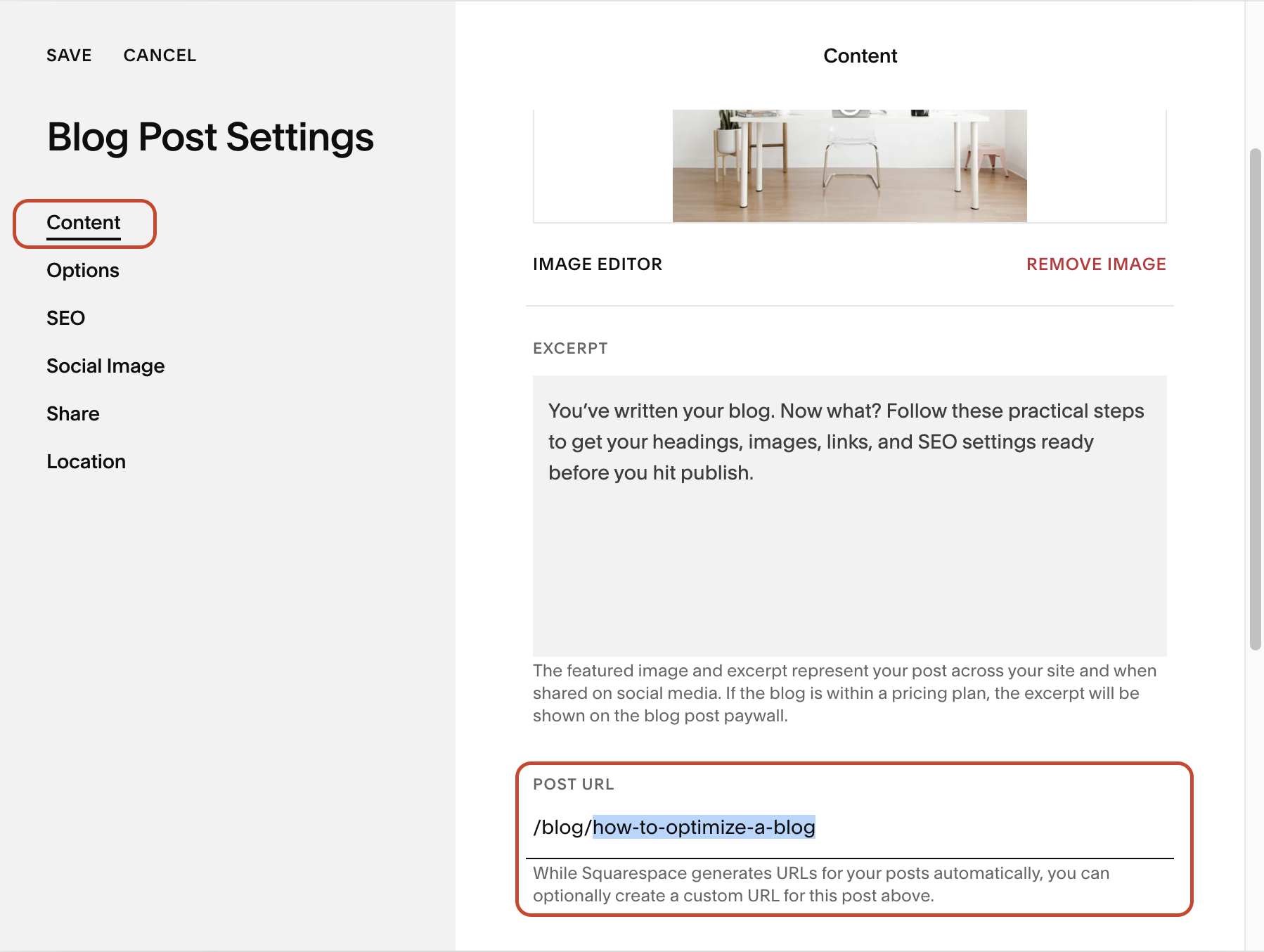
URL Slug
The slug is the part of the URL that identifies the page.
For this blog, I’d use:how-to-optimize-a-blog
Keep it descriptive and easy to read. You don’t need to include the entire title.
Choose it before publishing. If you later need to change it, set up a permanent redirect from the old address to the new one and update links that use the old URL. Google’s redirect guidance
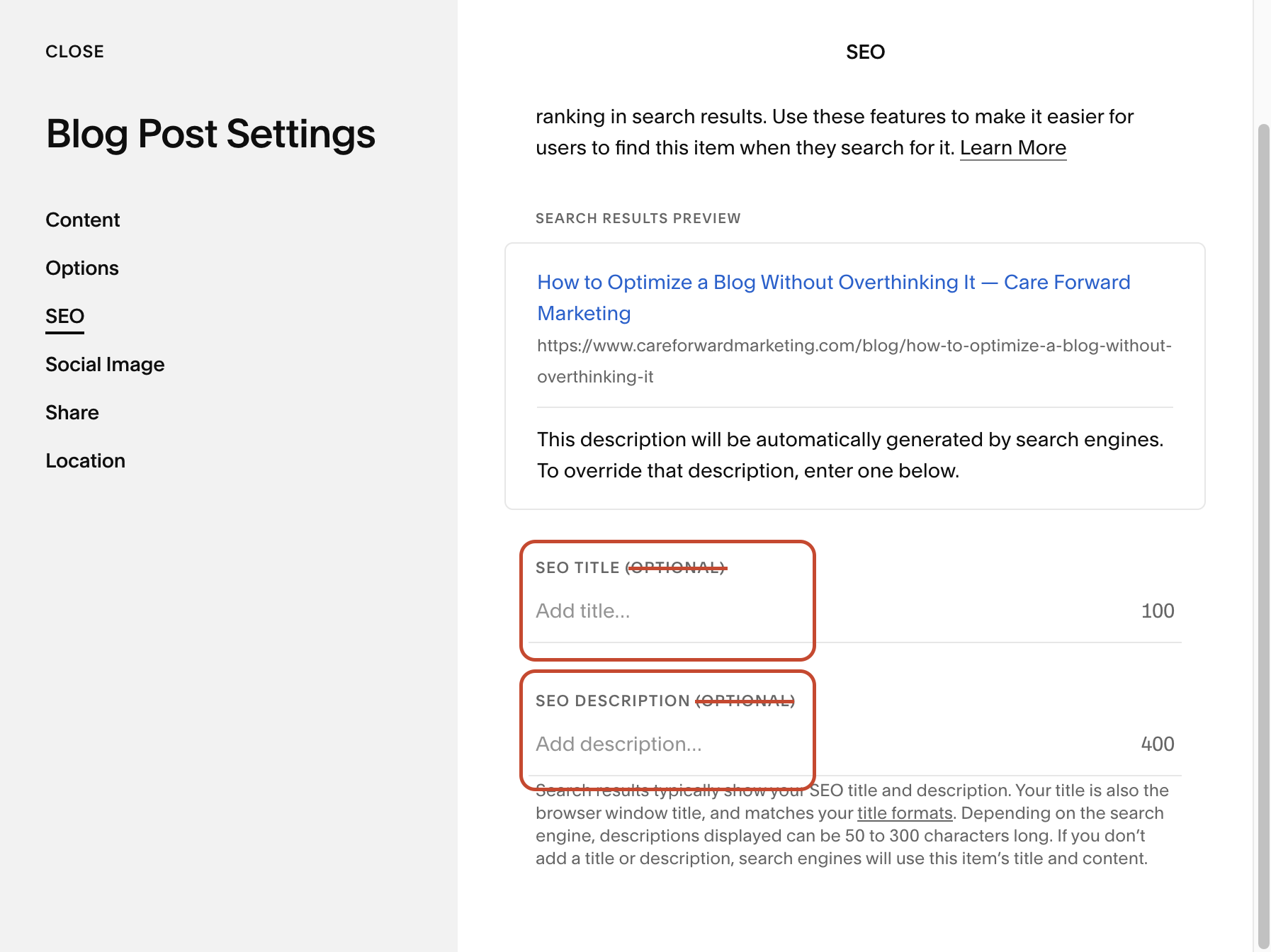
SEO Title
Your SEO title helps describe the page in search results. It can differ slightly from the title visitors see on the blog.
For example:
How to Optimize a Blog: A Practical SEO & GEO Guide
Start with a clear description of the topic. Around 50–60 characters can be a useful drafting target, but it isn’t a strict rule. Google may display a different title or shorten it to fit. Google’s title guidance
Meta / SEO Description
Your meta description is a short summary that Google may use below your title.
For example:
Learn how to optimize a blog with clear headings, useful links, image alt text, and metadata. Use this practical checklist before you publish.
Tell readers what they’ll get from the page. Include a next step when it fits naturally.
Google may use text from the page instead, depending on the search. Your description is a suggestion, not a guaranteed preview. Google’s snippet guidance
Keep in mind: Add a location when it matters to the topic. A general tutorial like this one doesn’t need a city or ZIP code.
Using Squarespace? Here’s Where This Goes:
Open the individual blog post’s settings and select SEO (pictured above). Add your SEO title and SEO description in the matching fields.
Your post title, SEO title, and excerpt have different jobs:
Post title: The headline readers see on the article.
SEO title: The title you suggest for search results.
Excerpt: A short introduction that can appear on your blog listing.
Some wording can overlap. Just make sure you’ve checked each field. Squarespace SEO description settings
5. Add Images That Help Explain the Content
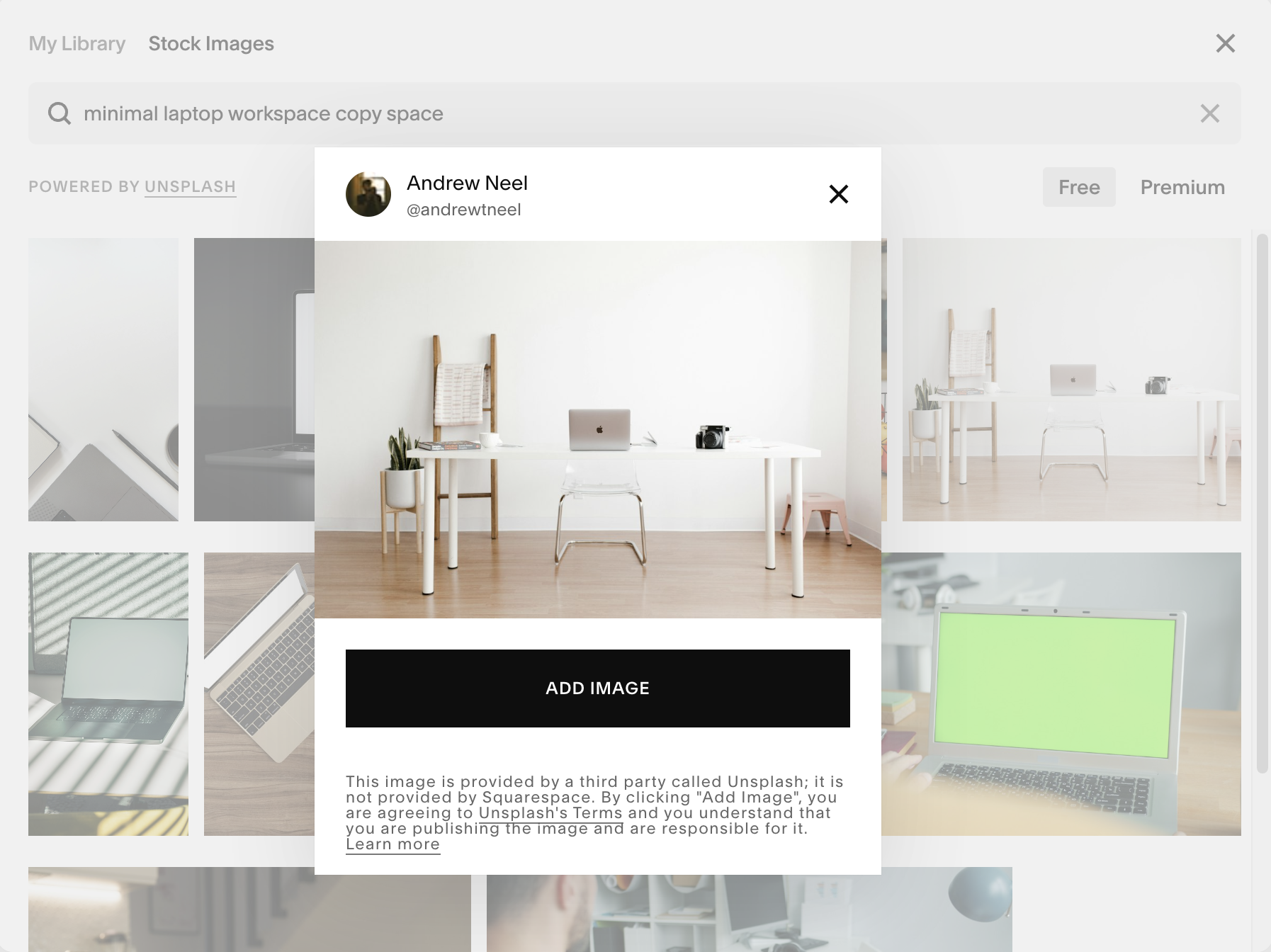
Choose images that serve a purpose. For a tutorial, a screenshot may be more useful than a stock photo.
There’s no need to add images just to meet a quota.
When uploading an image:
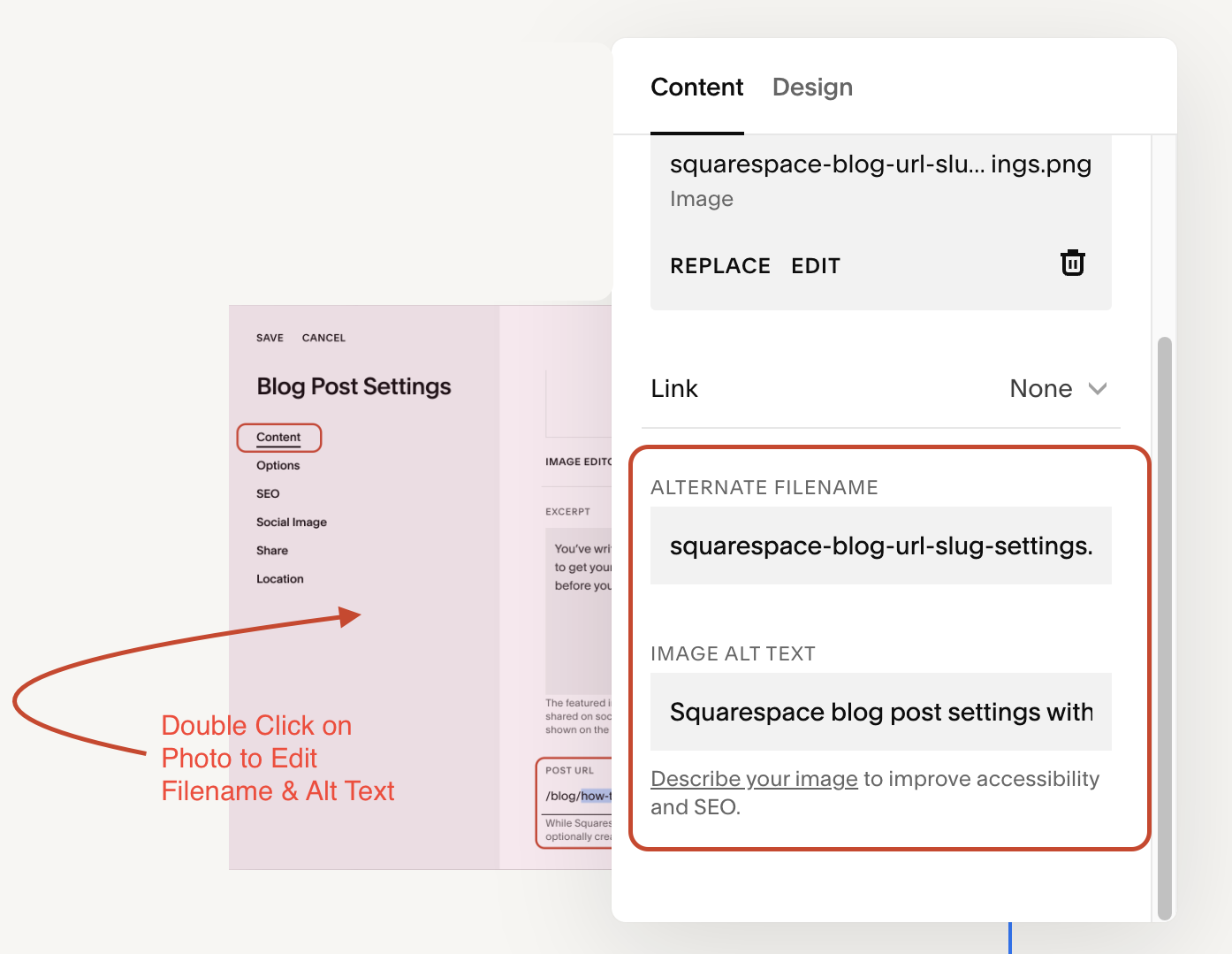
Give it a descriptive filename, like blog-seo-title-settings.webp.
Resize and compress it so it doesn’t unnecessarily slow down the page.
Write alt text that describes the relevant information in the image.
For a screenshot of your SEO settings, the alt text might be:
“SEO settings showing the blog’s title and meta description.”
Match the description to what the image actually shows. Avoid lists of keywords, cities, or ZIP codes. Google’s image guidance
In Squarespace, edit the Image block and use its dedicated alt text field. A caption or filename doesn’t replace alt text. Squarespace alt text guidance
Purely decorative images should generally use an empty alt attribute. Check how your website handles that image type. W3C decorative image guidance
Using Squarespace? Empty alt attribute is [alt=""].
6. Connect Your Blog to Other Useful Pages
Internal links help readers find related information on your website.
Link to another article, a relevant service, or a next step that makes sense for the topic.
Use descriptive link text. For example, “explore our website services” tells readers more than “click here.”
And make the connection go both ways. Once your blog is published, look for an existing page where linking to the new post would be helpful.
You don’t need to force a homepage link into every article. Choose links based on what the reader needs next. Google’s linking guidance
7. Keep AI Search in Mind
You may have heard the term GEO, or generative engine optimization. It describes efforts to improve visibility in AI-generated search answers.
Start with useful content: answer the main question clearly, explain your steps, and include examples that come from your own work.
For Google’s AI search features, the foundations of SEO still apply. You don’t need a special AI file or a different writing style. And no formatting trick guarantees that your blog will be cited. Google’s AI search guidance
Action item: Look for one place where a real example, screenshot, or explanation would make your advice more useful.
8. Give Readers a Clear Next Step
What should someone do after reading?
Choose a call to action that fits the blog. That might mean reading a related guide, joining your newsletter, or contacting you.
For a how-to post, it can also mean putting the advice into practice.
Make the action specific. “Open one blog and review its SEO settings” gives someone a clear place to start.
9. Preview, Publish, and Follow Up
Before publishing, preview the page on your phone as well as your computer.

Check the headings, spacing, images, and links. Make sure any buttons or forms work.
After publishing, use Google Search Console to inspect the URL. You can request indexing, but Google may also discover the post through links and your sitemap. A request doesn’t guarantee indexing or rankings. Google’s indexing guidance
If you’ve recorded a helpful video, embed it where it supports the instructions. Add captions and keep the written steps available, too.
Then share the blog with people who would benefit from it.
As data builds, review how people find the page and whether they take the next step. Use that information to identify missing answers or opportunities to improve.
Your Blog Optimization Checklist
Before you hit publish, check:
Does the blog answer a clear question?
Are the headings descriptive and properly formatted?
Have you added useful examples and checked the facts?
Are the URL, SEO title, and meta description ready?
Do images have appropriate filenames and alt text?
Do internal links help readers find related information?
Is the author identified?
Is there a clear next step?
Does the page work well on mobile?
Ready to put this into practice? Open one blog on your website and work through this checklist. Start with one post, make the improvements, and use the same process the next time you publish.
In need of 1:1 SEO/GEO support?
Reach out to Care Forward Marketing to learn how we can support you.